

How To Clear User Locks In Sage 50 Accounts
Reading Time: 3 minutes
It's 9am on a Miserable Monday Morning.
You haven't had your morning coffee, you're signing into sage and you have entered your password incorrectly 3 times… You're locked out.
Then you're faced with this dreaded error message:
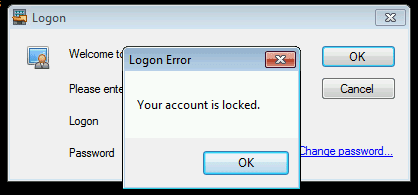
Fear not! itas are here to help.
What You Need to Know…
The most common way of finding yourself locked out of Sage, believe it or not, is entering your password incorrectly 3 times.
Let's face it, we have so many passwords, therefore, it is easily done.
Another scenario where you might find yourself locked out of Sage, is when you are greeted with an error message that says you are logged in elsewhere. However, you know that you're not.
No matter how many times you get locked out of Sage, it is very frustrating!
How to Fix Being Locked Out
Solving the issue is relatively easy, you will, however, require one of two things:
a. Access to System Administration
or
b. Contact details for your IT support
a. Access to System Administration
- If you do have system admin permissions, you will need to sign in to System Admin.
- You're then greeted with the following window:

- In the left column, select Users. This then brings up a list of all users with access to Sage.
- Next, you will need to find your name from the list, simply Right-click on your name and select Unlock User.
- Once this is done, you are good to go! Log back in as you please.
If you need to change your password, you also do this in System Admin > Users > Right-click on your name > Reset Password.
.
b. Contact your IT Support
If you do not have System Administration permissions, you would need to contact your IT.
Explain that you are locked out of Sage and that you require to be unlocked.
If you also need to change your password upon being unlocked, ask them about that as well.
With those methods covered, let's take a look at the…
'Logged Elsewhere' Error Message
This error message typically appears after having previously logged into Sage at another workstation without logging off successfully.
Note: This would not appear as a disconnected login. Want to know more about disconnected logins? Check out our Sage 200 Disconnected Logon blog here.
To rectify this lockout scenario you will need to:
Head to System Admin > select Active Users from the list on the left.
You're then presented with a list of active users and under the column headed Computer Name, you will find the computers that you're logged into.
From here you will need to contact your IT and ask that they log you off that specific computer.
Following on from this, try signing back into sage and you should find that you now have access.
Conclusion
So, hopefully, the next time you find yourself locked out of sage you may be able to rectify the problem or at least understand the solution that will be carried out by your IT.
Now you know that it is a simple fix, don't panic!
If you liked my blog today, why not leave some feedback? Thanks!!


Tamara is our Website Manager. Responsible for all things website; whether its design, development, SEO, copywriting or blog writing and editing.
In her spare time, Tamara loves traveling, gaming, and going to gigs.
How To Clear User Locks In Sage 50 Accounts
Source: https://itassolutions.co.uk/sage-200-software/locked-out-sage-dont-panic/
Posted by: stewarttorcer.blogspot.com
0 Response to "How To Clear User Locks In Sage 50 Accounts"
Post a Comment